#gaming monitor#buying guide#display tech#refresh rate#resolution
What Should I Look for When Buying a Gaming Monitor?
Choosing a gaming monitor can feel overwhelming. Here's what actually matters — from resolution and refresh rate to panel type and connectivity.
By GAMEO LIMITEDPublished 28 October 2026 5 min read
The most important factors when buying a gaming monitor are refresh rate, resolution, panel type, and response time — but which matters most depends on what you play and what hardware you own. Getting the balance right between these specs (and your budget) will have a bigger impact on your experience than any single number on a spec sheet.
Refresh rate: how smooth do you need it?
Refresh rate, measured in hertz (Hz), is how many times per second your monitor updates the image. A 60 Hz display redraws 60 times a second; a 144 Hz display redraws 144 times. For fast-paced games — shooters, racing titles, fighting games — a higher refresh rate makes motion feel noticeably smoother and more responsive.
- 60 Hz – Fine for slow-paced or turn-based games, and the standard output for most consoles before this generation.
- 144 Hz – A popular sweet spot for PC gaming; widely considered a meaningful upgrade over 60 Hz.
- 165–240 Hz – Useful if your PC can consistently hit those frame rates and you play competitive titles.
- 360 Hz and above – Diminishing returns for most players; mainly relevant to professional-level competitive gaming.
Keep in mind that your GPU needs to actually produce enough frames to benefit from a higher refresh rate. Running a demanding game at 80 fps on a 240 Hz monitor won't look different from running it on a 144 Hz monitor.
Resolution: sharpness vs performance
Resolution determines how many pixels make up the image. More pixels means a sharper picture, but also demands more from your graphics card.
| Resolution | Common name | Best suited for |
|---|---|---|
| 1920 × 1080 | 1080p / Full HD | Budget builds, high-frame-rate competitive play |
| 2560 × 1440 | 1440p / QHD | Mid-range PCs, a strong all-round choice |
| 3840 × 2160 | 4K / UHD | High-end PCs, console gaming, cinematic titles |
| 2560 × 1080 / 3440 × 1440 | Ultrawide | Immersive single-player, sim racing, productivity |
For console players on a PS5 or Xbox Series X, 4K at up to 120 fps is possible — but only over HDMI 2.1, which requires your monitor to have that port. Make sure to check the spec sheet carefully, as not every monitor labelled "4K" includes HDMI 2.1.
Panel type: the look and feel of the image
The three main panel technologies each have genuine trade-offs:
IPS (In-Plane Switching) – Accurate, vibrant colours and wide viewing angles. Response times have improved significantly in recent years. A versatile choice for most gamers.
TN (Twisted Nematic) – Historically the fastest response times and often the lowest price, but colour accuracy and viewing angles are noticeably weaker. Less common in newer monitors.
VA (Vertical Alignment) – The deepest blacks and highest contrast ratios of the three, which benefits dark scenes. Can suffer from "smearing" on fast motion at lower price points, though higher-end VA panels have improved.
OLED – Not a traditional LCD panel type, but increasingly available in gaming monitors. Delivers perfect blacks, exceptional contrast, and near-instant pixel response. Typically the most expensive option, and it's worth reading about potential burn-in if you display static elements (like HUD icons) for long periods.
Response time: what the numbers actually mean
Response time is how quickly a pixel can change from one colour to another, measured in milliseconds (ms). A lower number means less motion blur and ghosting. Manufacturers often quote the fastest possible measurement (such as a grey-to-grey or "overdrive" figure), which can be optimistic.
In practice, anything around 1 ms to 5 ms is unlikely to cause noticeable issues for most gamers. If ghosting concerns you, look for independent reviews rather than relying solely on the advertised figure.
Screen size and aspect ratio
Size is partly personal preference, but viewing distance matters. Common pairings:
- 24–25 inch at 1080p – Dense pixel count, easy to see the full screen at a desk
- 27 inch at 1440p – Very common for good reason; balanced sharpness and screen real estate
- 32 inch at 4K – Suits larger desks or console setups viewed from slightly further away
- Ultrawide (21:9) – Wider field of view in supported games; not all titles support it natively
Adaptive sync: G-Sync and FreeSync
Adaptive sync technologies (marketed as G-Sync and FreeSync, depending on the manufacturer) synchronise the monitor's refresh rate to your GPU's frame output. This reduces screen tearing without the input lag that traditional V-Sync can introduce. If your PC graphics card supports it, a monitor with adaptive sync is worth having — especially if your frame rate fluctuates.
Note that compatibility between specific GPU brands and sync technologies varies. Check whether the monitor you're considering is compatible with your graphics card.
Connectivity: ports matter more than you might think
Before buying, check what ports the monitor offers and match them to your devices:
- DisplayPort 1.4 – Supports 4K at 144 Hz or 1440p at 240 Hz on PC
- HDMI 2.1 – Required for 4K at 120 Hz from PS5 or Xbox Series X
- HDMI 2.0 – Caps out at 4K 60 Hz or 1080p/1440p at higher refresh rates
- USB-C – Useful for laptops that support DisplayPort over USB-C
A monitor may have multiple HDMI ports but only one of them may be HDMI 2.1 — read the spec sheet for each port individually.
Related questions
Does a higher refresh rate reduce input lag? A higher refresh rate does reduce the time between a frame being rendered and appearing on screen, which contributes to a more responsive feel — but input lag is also affected by the monitor's internal processing. The two are related but not the same thing.
Is a curved monitor better for gaming? Curved monitors can feel more immersive on larger or ultrawide screens by keeping the edges closer to your natural focal distance. On smaller screens (under 27 inches), the effect is minimal. Whether it helps you depends on the games you play and your desk setup.
What's the difference between HDR400 and HDR1000? HDR (High Dynamic Range) ratings reflect peak brightness capability. HDR400 is a relatively low threshold that many monitors achieve without a dramatically improved image. HDR1000 and above, particularly on monitors with local dimming zones, tends to produce a more noticeable HDR effect. Not all HDR implementations are equal.
Do I need a gaming monitor for console, or will a TV do? TVs and monitors both work for consoles, but monitors typically have lower input lag and higher refresh rates at a given price point. TVs are better if you sit further away or want a much larger screen. Many modern TVs include a dedicated "game mode" to reduce input lag.
Bottom line
There's no single spec that makes a gaming monitor "right" — it comes down to your platform, the games you play, and how much your hardware can push. Prioritise refresh rate and response time for competitive play, resolution and panel quality for immersive single-player experiences, and always double-check the ports match your PC or console before you buy.
Shop GAMEO gaming monitors
COMPACT QHD PERFORMANCE
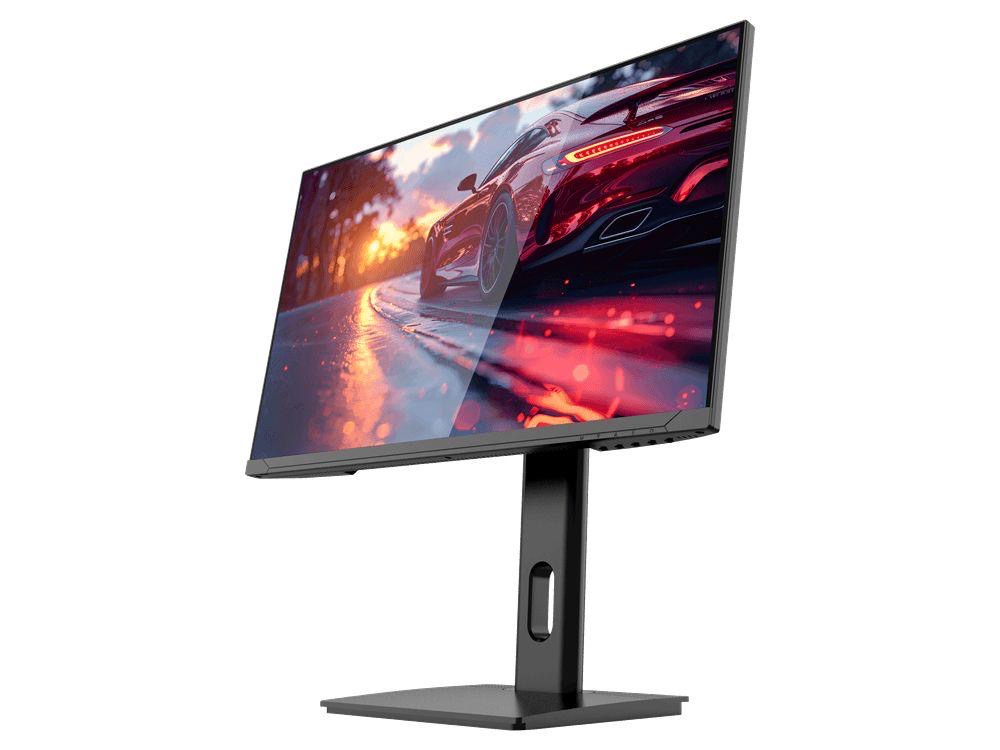
GAMEO Q24-165
24" QHD 165Hz IPS Gaming Monitor
For users prioritising QHD resolution in a compact 24-inch display.
RRP: £209.99 (inc. VAT)
You Save: £95.65
FAST FULL HD GAMING
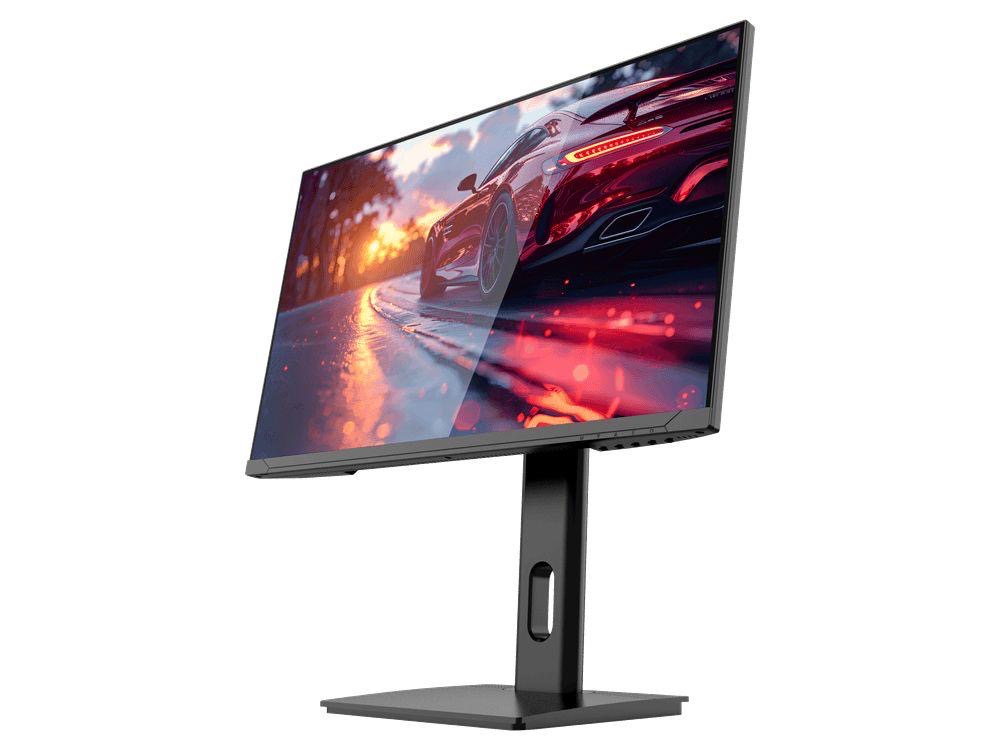
GAMEO F24-200
24" FHD 200Hz IPS Gaming Monitor
For users prioritising very high refresh performance in a 24-inch Full HD monitor.
RRP: £169.99 (inc. VAT)
You Save: £71.49
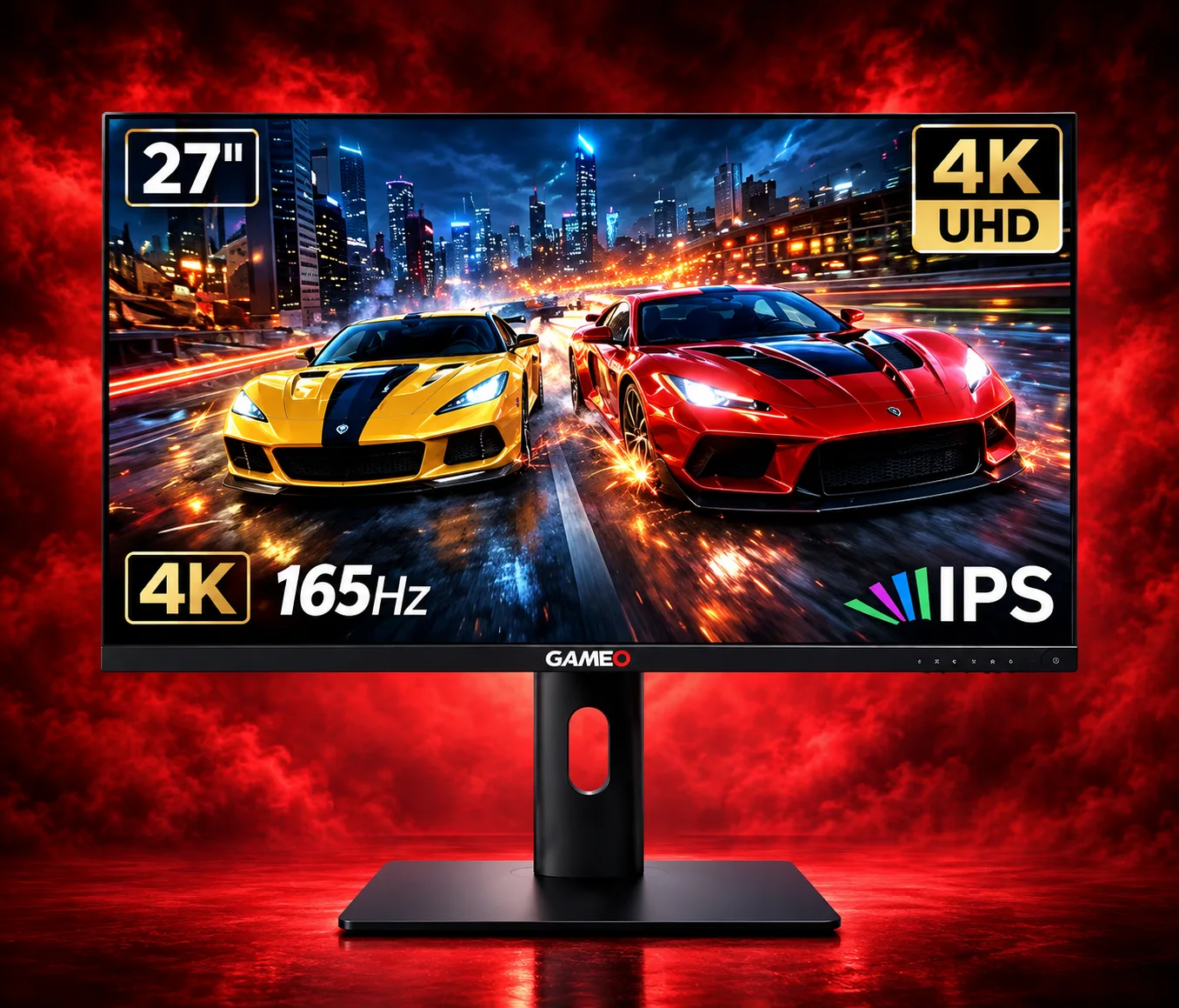
ULTRA HD GAMING PERFORMANCE
GAMEO U27-165
27" 4K UHD 165Hz IPS Gaming Monitor
For users wanting 4K UHD resolution and high refresh on a 27-inch display.
RRP: £339.99 (inc. VAT)
You Save: £144.03
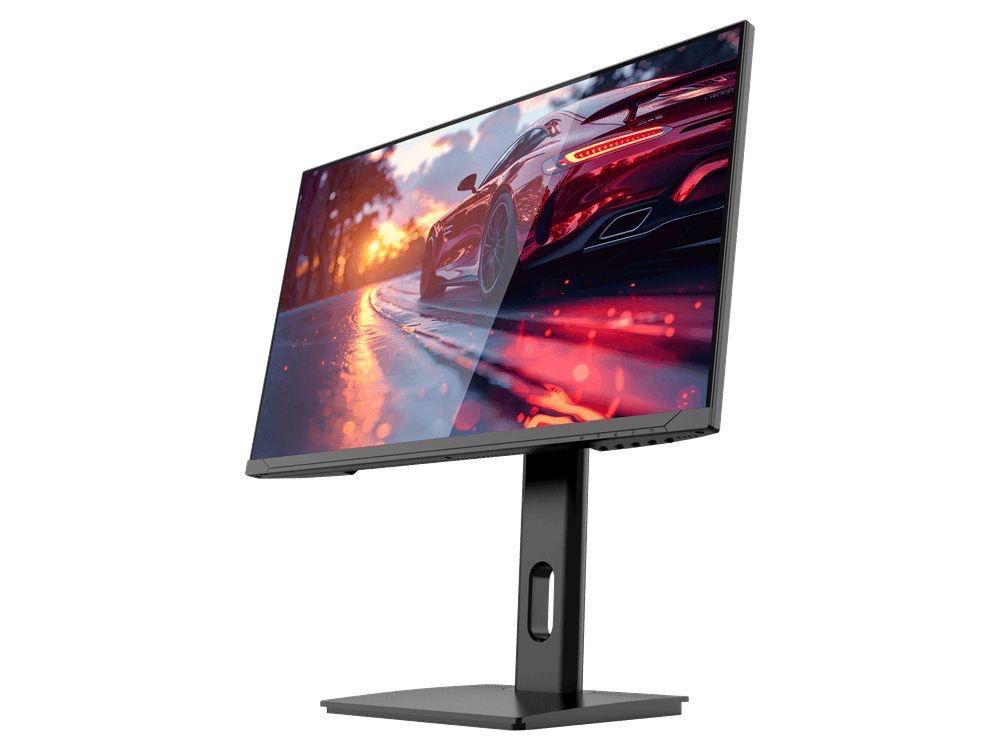
LARGE-SCREEN HIGH REFRESH
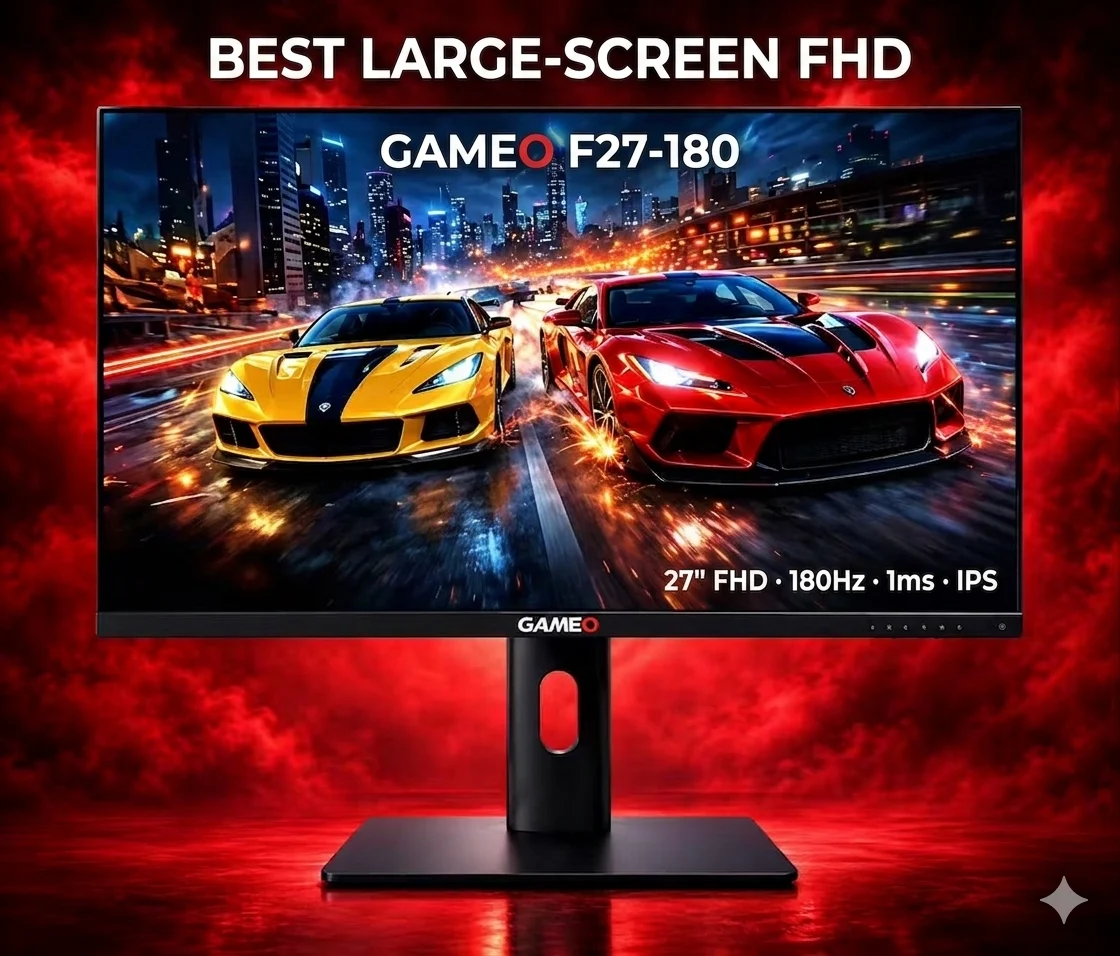
GAMEO F27-180
27" FHD 180Hz IPS Gaming Monitor
For users wanting a larger 27-inch screen combined with high-refresh Full HD gaming.
RRP: £229.99 (inc. VAT)
You Save: £118.17